Hands-On Guide to Building a GOAD Lab with Wazuh and Tailscale Subnet Routing
Introduction
In this tutorial, you’ll learn how to set up the GOAD (Game of Active Directory) lab using VirtualBox and Vagrant, and access it from another machine over Tailscale. This setup includes:
-
Building the lab from scratch
-
Adding the Wazuh detection extension
-
Enabling Tailscale subnet routing
-
Accessing the internal lab from a second system
-
Optional SSH configuration between the machines
Prerequisites
To follow this guide, you’ll need:
- A Linux host system (e.g., Ubuntu) with at least 32 GB RAM
- Internet access
- Basic familiarity with VirtualBox, command-line tools, and networking
- A second device (laptop or VM) to access the lab remotely (Optional)
Installing VirtualBox and Vagrant
First, install VirtualBox:
sudo apt install virtualboxThen install Vagrant with HashiCorp’s official repository:
wget -O- https://apt.releases.hashicorp.com/gpg | sudo gpg --dearmor -o /usr/share/keyrings/hashicorp-archive-keyring.gpg

echo "deb [signed-by=/usr/share/keyrings/hashicorp-archive-keyring.gpg] https://apt.releases.hashicorp.com $(lsb_release -cs) main" | sudo tee /etc/apt/sources.list.d/hashicorp.list

sudo apt update && sudo apt install vagrant
Install required Vagrant plugins:
vagrant plugin install vagrant-reload vagrant-vbguest winrm winrm-fs winrm-elevatedInstall supporting tools:
sudo apt install sshpass lftp rsync openssh-client python3.10-venvCloning and Starting GOAD
Clone the official GOAD repository:
git clone https://github.com/Orange-Cyberdefense/GOAD.git
cd GOAD
Check dependencies:
./goad.sh -p virtualboxSet up the lab with a custom IP range (for example, 192.168.57.0/24):
./goad.sh -p virtualbox
> set_lab GOAD
> set_ip_range 192.168.57
> install
Install the optional Wazuh detection platform:
> install_extension wazuhNote down the Wazuh admin password.
Configuring Tailscale on the Lab Host (Subnet Router)
Why I Used Tailscale to Access the Lab Remotely
My main system has 32 GB of RAM, and running the full GOAD lab with Wazuh consumes almost 30 GB, leaving very little headroom for anything else. If I try to test or interact with the lab directly from the host machine, the system becomes sluggish or unstable.
To avoid this, I decided to offload the testing and interaction to another machine, allowing the main system to focus entirely on hosting the lab VMs. But since the lab VMs are on a host-only VirtualBox network (192.168.57.0/24), they are not directly accessible from other devices on my LAN.
This is where Tailscale came in.
Tailscale let me:
-
Securely route traffic from my second device to the lab’s internal network
-
Avoid exposing any services to the wider LAN or Internet
-
Keep my main system stable by shifting resource-heavy tasks like scanning, enumeration, or reporting to another machine
By using Tailscale’s subnet routing, I could access 192.168.57.X addresses from my second Pop!_OS laptop as if they were on the same network — securely and seamlessly.
This is done on the machine running VirtualBox.
Install Tailscale
curl -fsSL https://tailscale.com/install.sh | shEnable IPv4 and IPv6 forwarding
echo 'net.ipv4.ip_forward=1' | sudo tee -a /etc/sysctl.conf
echo 'net.ipv6.conf.all.forwarding=1' | sudo tee -a /etc/sysctl.conf
sudo sysctl -p
Optional: Set reliable DNS for your system
sudo nano /etc/systemd/resolved.confSet DNS and FallbackDNS:
DNS=1.1.1.1 8.8.8.8
FallbackDNS=1.0.0.1 8.8.4.4
Restart resolved:
sudo systemctl restart systemd-resolvedConnect Tailscale and advertise the VM subnet
sudo tailscale up \
  --advertise-routes=192.168.57.0/24 \
  --accept-risk=lose-ssh \
  --accept-dns=true \
  --reset
Visit tailscale.com/admin/machines and approve the subnet route.
You should now see the subnet in your Tailscale status:
tailscale status --jsonExpected output:
   "PrimaryRoutes": [
        "192.168.57.0/24"
      ]
Configuring Tailscale on the Second Machine
This is your external access machine (e.g., laptop or second Pop!_OS system).
Install Tailscale
curl -fsSL https://tailscale.com/install.sh | shAccept Subnet Routes (only required on linux machines)
sudo tailscale up --accept-routes⚠️ Important: Don’t forget to approve the advertised route (
192.168.57.0/24) from the Tailscale Admin Panel, or your second machine won’t see the lab network!
Optional: Enable DNS integration
sudo tailscale up --accept-routes --accept-dns=trueTesting Connectivity
From your second machine:
ping 192.168.57.10
ssh [email protected]
You should now be able to access your GOAD VMs over Tailscale.
Optional SSH Setup Between Machines
To simplify access between the machines:
sudo apt install openssh-server
sudo systemctl enable --now ssh
Generate SSH key on the client machine
ssh-keygenCopy SSH key to the host machine
ssh-copy-id [email protected]You can now SSH into the host without typing a password:
Access the Wazuh Dashboard
https://192.168.57.51/app/login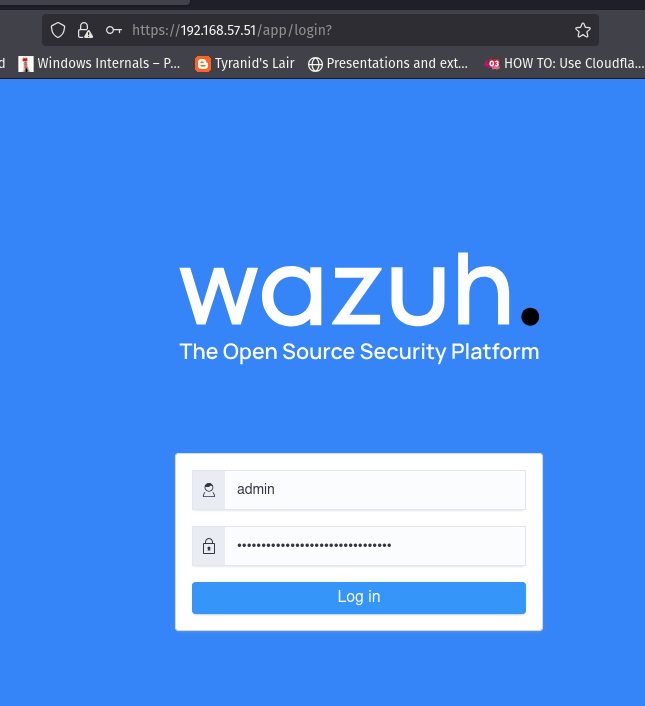
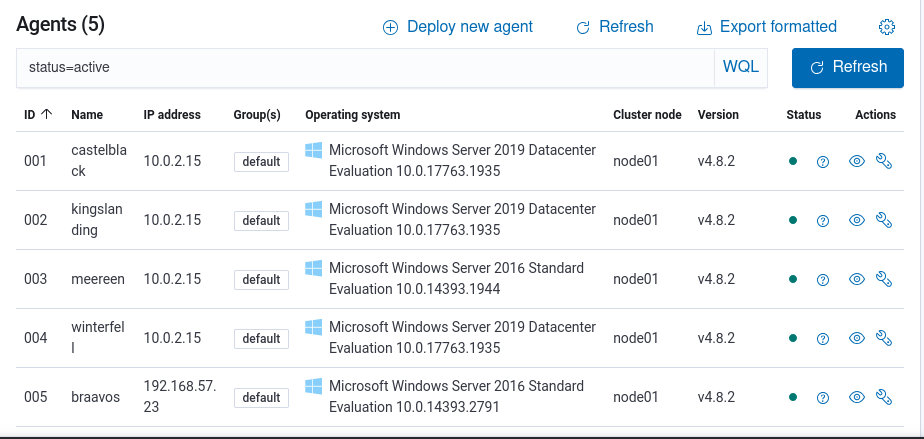
Active Agents in Wazuh
Monitor your lab systems and ensure all VMs are reporting correctly.
Fixing IP Issues in Wazuh (Agent Side)
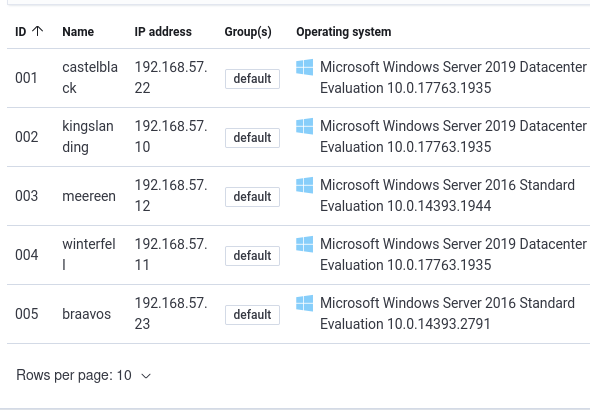
If some agents are reporting the wrong IP (like 10.0.2.15 instead of 192.168.57.X), you can manually restart the agent using Evil-WinRM:
evil-winrm -i 192.168.57.22 -u vagrant -p vagrantInside the session:
Stop-Service Wazuh
Start-Service Wazuh
Once restarted, the agent should re-register with the correct IP address.
Summary
You now have:
-
A fully functional GOAD lab running inside VirtualBox
-
Wazuh installed as a detection extension
-
Tailscale subnet routing enabled
-
Secure remote access to the entire lab from another machine
With GOAD, Wazuh, and Tailscale running together, you’ve created a safe and realistic lab that mirrors enterprise AD environments — perfect for blue team, red team, or purple team exercises. Whether you’re practicing detection, simulating attacks, or writing custom alerts, this setup has you covered. Happy hunting!